












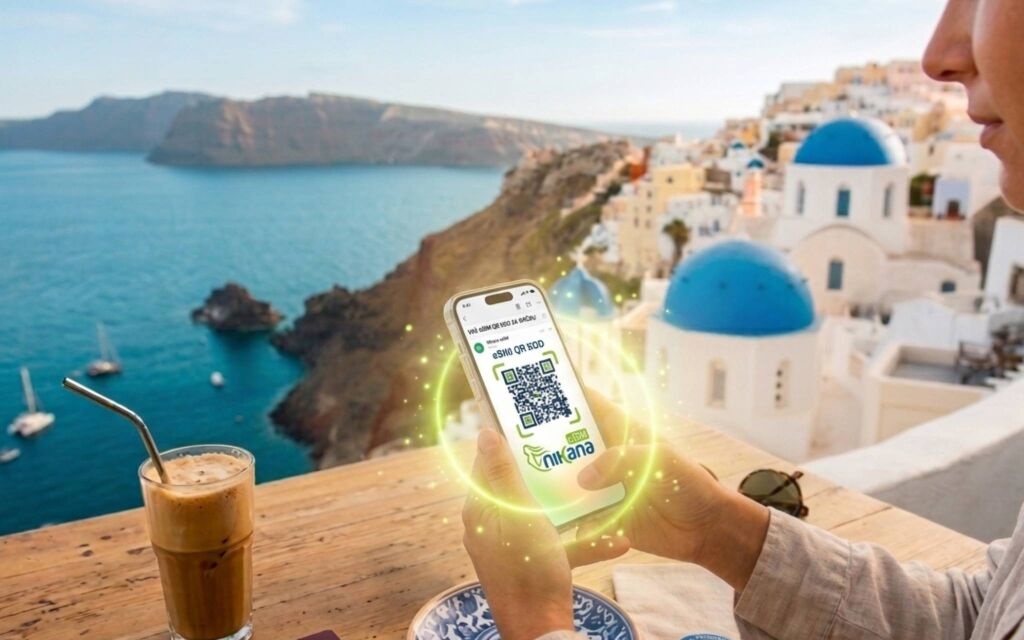
Purchasing an eSIM is the quickest way to secure internet access while traveling, but we understand that installing new technology can seem challenging if you’re doing it for the first time. No worries - the process is actually simpler than inserting a traditional physical card into your phone.
This guide will walk you through the installation (which you can do at home) and activation (done at the border), so you can be online in less than two minutes.
Important note: Before you begin, make sure your phone is compatible. You can check the list of supported devices here.
Select your package here and you’re ready to go - Nikana eSIM.
How to install eSIM?
You can do this part as soon as you purchase the package, preferably while still on your home Wi-Fi network.
After purchasing the eSIM, you will receive a QR code via email. In your phone settings, choose the option to add an eSIM, scan the QR code, and the eSIM will be installed in 1-2 minutes.
If you have iOS (iPhone, iPad)
- Settings → Mobile Data → Add eSIM → Scan QR code
- Scan the QR code and the installation will be completed automatically.
If you have Android (Samsung, Xiaomi…)
- Settings → Connections → SIM Manager → Add mobile plan → Scan QR code
- Confirm the addition of the eSIM.
If you have Google Pixel
- Settings → Network & Internet → SIMs → Add SIM → Download a SIM instead → Scan QR code.
- The installation completes automatically.
How to activate the internet upon arrival?
This should be done the moment you cross the border or arrive at your destination.
Quick activation of the internet on Nikana eSIM: 1. Go to Settings → Mobile Data. 2. Enable the purchased eSIM line. 3. Activate “Mobile Data” on that line. 4. Turn on “Data Roaming” (this roaming is free and allows the eSIM to connect to multiple networks).
Detailed step-by-step settings:
1. Select Nikana eSIM for mobile data
If you have iOS (iPhone, iPad):
- Settings → Mobile Data → Cellular Data → Select the purchased eSIM line (usually named Business, travel, secondary…).
If you have Android (Samsung, Xiaomi, Huawei…):
- Settings → SIM & Network / Connections → Mobile Data → Preferred SIM → Select the purchased eSIM line (usually named Business, travel, secondary…).
Note: The eSIM doesn’t have to be the primary line for calls and SMS - it’s used only for internet.
2. Turn on mobile data If you have iOS (iPhone, iPad):
- Settings → Mobile Data → Cellular Data ON
If you have Android:
- Settings → SIM & Network → Mobile Data ON.
3. Turn on Data Roaming It is not charged - it is necessary for the eSIM to connect to local networks.
4. Optional: Turn off mobile data for the physical SIM card If you have iOS (iPhone, iPad):
- Settings → Mobile Data → Turn off your physical SIM
If you have Android: Settings → SIM & Network → Mobile Data → Switch off physical SIM
This prevents accidental use of the domestic SIM card and roaming charges.
Internet is usually activated within a few seconds.
What if the internet doesn’t work immediately?
In 99% of cases, the internet is activated within a few seconds. If not, the most common reason is usually a single “button” that remains off or on. Don’t worry, check the detailed instructions here:
If you’re unsure, our support team will assist you. Our support is in Serbian - email us at support@nikana-esim.com.
What to send us for quick help: This helps us resolve the issue within minutes. Send us:
Phone model (e.g. iPhone 13 or Samsung S24).
Location (which country/place you are currently in).
Screenshots of settings (screen showing that the line is on and screen with Mobile Data settings).


